


Introduction
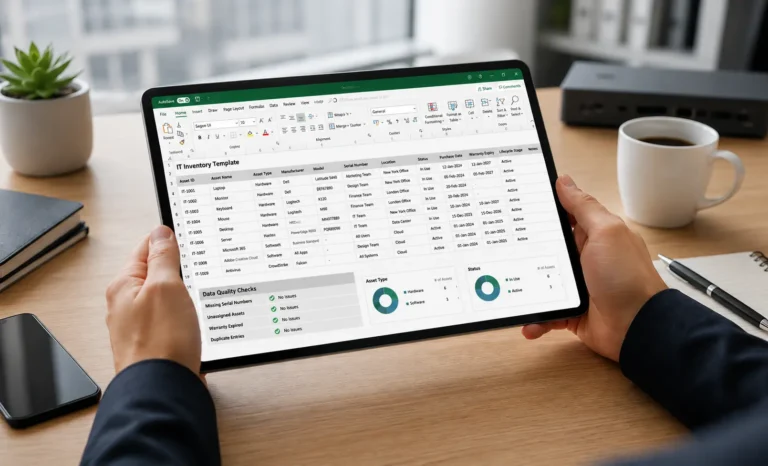
An IT inventory Excel template is a spreadsheet used to track IT assets such as laptops, desktops, servers, network devices, peripherals, software, licenses, spares, and assigned employee devices. A good IT inventory management Excel templates should include asset fields, ownership details, location data, status values, audit columns, validation rules, exception tracking, and upgrade triggers that show when Excel is no longer enough.

If your IT inventory spreadsheet has grown from a simple device list into a multi-tab workbook that only one person understands, this guide will help you fix the structure before the next audit, employee exit, or stockroom reconciliation. Excel can work for small IT teams and early-stage inventory control.
However, it becomes risky when assets move often, multiple users update records, remote employees hold devices, finance needs reconciliation, or auditors ask for evidence. Understanding what IT inventory management looks like as a structured process helps teams build toward a more controlled and audit-ready approach.
In this guide, you’ll learn
- What an IT inventory Excel template should include.
- Which fields are required, recommended, or optional.
- How to structure tabs for asset master data, employee assignment, stockrooms, software, audits, exceptions, and disposal.
- Which Excel validation rules reduce inconsistent entries.
- How to use simple spreadsheet checks to find duplicate, stale, missing, and unassigned records.
- When to replace Excel with IT inventory software.
Who should use an IT inventory spreadsheet?
An IT inventory spreadsheet is useful for small, stable IT environments with limited asset movement, one or two record owners, and low audit complexity. Excel becomes risky when many users update the file, assets move frequently, remote employees hold devices, or audit evidence is required.
Excel is usually acceptable when | Excel becomes risky when |
|---|---|
| The IT team tracks a small number of assets | The company tracks hundreds or thousands of assets |
| One owner updates the file | Multiple users edit the workbook at the same time |
| Asset movement is rare | Assets move often between users, branches, repairs, and stockrooms |
| Audits are simple | Auditors need scan logs, approvals, history, and evidence |
| Few employees work remotely | Remote assets need return proof and custody verification |
| Finance does not require detailed reconciliation | IT records must match the fixed asset register or ERP |
| The workbook uses controlled fields | Free-text entries create inconsistent status, owner, and location data |
| Manual updates are manageable | Manual updates create stale, duplicate, or missing records |
Use Excel as a starting point, not as a permanent IT inventory operating system. The template should help you organize the data, identify control gaps, and prepare for migration when the inventory becomes too dynamic for spreadsheets.
What fields should an IT inventory template include?
An IT inventory management template should include fields that identify each asset, assign accountability, locate the asset, track its status, support service workflows, connect to finance records, and preserve audit evidence.
Field category | Recommended fields | Why it matters |
|---|---|---|
| Asset identity | Asset ID, asset tag, serial number, hostname, asset type, manufacturer, model | Prevents duplicate records and supports physical verification |
| Ownership | Assigned user, employee ID, department, manager, cost center, custodian | Creates accountability for devices and accessories |
| Location | Country, region, site, office, floor, room, rack, stockroom, remote location indicator | Supports counts, transfers, branch visibility, and audits |
| Lifecycle status | In stock, assigned, in use, in repair, in transit, returned, missing, lost, retired, disposed | Shows what action the asset needs |
| Procurement | Vendor, purchase order, invoice, purchase date, warranty end date, support contract | Supports warranty claims, renewals, and procurement planning |
| Finance | Fixed asset number, capitalization status, asset cost, book owner, depreciation class, and finance status | Helps reconcile IT inventory with finance records |
| Assignment history | Issue date, assigned to, assigned by, expected return date, user acknowledgement | Supports employee handover and exit workflows |
| Software/license | Software name, license key or subscription ID, license owner, renewal date, assigned device/user | Helps track software and license obligations |
| Audit verification | Last verified date, verified by, verification method, condition, audit batch, exception status | Shows whether records can be trusted |
| Exception handling | Exception type, severity, owner, due date, resolution, closure evidence | Prevents errors from hiding in the spreadsheet |
| Disposal | Retirement reason, approval date, wipe confirmation, disposal vendor, certificate reference, and FAR update | Supports secure and finance-aligned asset closure |
| Migration mapping | Target system field, import status, validation status, notes | Makes future software migration easier |
Data validation rules for IT inventory spreadsheets
Data validation rules protect spreadsheet quality by limiting what users can enter. For IT inventory, validation should control statuses, asset types, dates, locations, user IDs, serial numbers, cost centers, and exception values.
Microsoft’s guidance explains that Excel data validation can restrict entries, including drop-down selections, and Microsoft also documents drop-down list creation through Data Validation.
Field | Recommended validation rule | Why it matters |
|---|---|---|
| Asset ID | Required; unique; no blanks | Prevents duplicate or missing records |
| Serial number | Required for hardware; duplicate check | Supports physical verification and warranty tracking |
| Asset type | Drop-down from Lookup Lists | Prevents “laptop,” “Laptop,” and “lap top” variations |
| Status | Drop-down from approved lifecycle statuses | Keeps reporting consistent |
| Location | Drop-down or lookup from the Location tab | Avoids inconsistent branch/site names |
| Assigned user | Match against the employee list where possible | Reduces invalid ownership records |
| Employee ID | Fixed format or lookup | Supports HRMS matching |
| Purchase date | Date only; not future date unless pre-ordered | Prevents invalid date entries |
| Warranty end date | Date only; greater than purchase date | Supports warranty reporting |
| Last verified date | Date only; cannot be after today | Protects audit credibility |
| Cost center | Controlled list | Supports finance reporting |
| Exception type | Drop-down from exception taxonomy | Improves exception analysis |
| Disposal date | Date only; required when status = disposed | Supports closure evidence |
Suggested status list
Status | Meaning |
|---|---|
| In stock | Asset is available in a controlled stockroom or location |
| Assigned | The asset has been issued to a user, but may not yet be confirmed in use |
| In use | Asset is actively used by a user, team, or location |
| In transit | The asset has moved, but the receipt is not confirmed |
| In repair | Asset is with IT, vendor, or service provider for repair |
| Returned | Asset came back and awaits inspection or redeployment |
| Missing | Asset was expected but not found |
| Lost | The asset has been investigated and confirmed lost |
| Retired | The asset is no longer used but has not yet been disposed of |
| Disposed | Asset disposal is complete, and evidence exists |
Suggested condition list
Condition | Meaning |
|---|---|
| Good | Ready for use |
| Fair | Usable but may need a refresh soon |
| Damaged | Needs a repair or replacement decision |
| Missing accessory | Main asset returned, but accessory missing |
| Needs inspection | Returned asset not yet checked |
| Not found | Asset was not found during verification |
Data-quality checks and formulas
An IT inventory spreadsheet should include data-quality checks that highlight incomplete, duplicate, stale, and risky records before they become audit issues.
Excel tables and structured references make formulas easier to read because formulas can use table and column names instead of cell references, and the references adjust when rows or columns change. Use Excel tables for each major tab so formulas remain easier to maintain as the workbook grows.
Data-quality scorecard
Check | What it detects | Why it matters |
|---|---|---|
| Missing required fields | Blank asset ID, serial number, status, owner, or location | Incomplete records cannot support audits |
| Duplicate serial number | Two rows with the same serial | Duplicate records distort counts and ownership |
| Duplicate asset tag | Two assets with the same tag | Physical verification becomes unreliable |
| Stale verification | Last verified date is older than the policy | The record may no longer be trustworthy |
| Invalid status | Status outside the approved list | Reports become inconsistent |
| Unassigned asset | In-use or assigned asset has no valid user or custodian | Accountability gap |
| Exited employee asset | Asset assigned to inactive employee | Return workflow gap |
| Overdue loaner | Loaner due date has passed | Custody risk |
| Missing disposal evidence | Disposed asset lacks a certificate or approval | Audit and compliance risk |
| Finance mismatch | Fixed asset number missing for capital assets | Finance reconciliation risk |
Sample scoring model
Use a simple 100-point inventory quality score.
Quality component | Weight |
|---|---|
| Required fields complete | 25 |
| Unique asset ID and serial number | 20 |
| Valid owner or custodian | 15 |
| Valid location | 10 |
| Current verification date | 15 |
| Exception status resolved | 10 |
| Finance reference complete where applicable | 5 |
Example score interpretation
Score | Interpretation | Action |
|---|---|---|
| 90–100 | Spreadsheet is controlled | Continue monthly review and prepare for import-readiness |
| 75–89 | Spreadsheet is usable but needs cleanup | Fix duplicates, missing owners, stale verification, and invalid statuses |
| 50–74 | A spreadsheet is unreliable for audits | Run a structured cleanup and physical verification |
| Below 50 | Spreadsheet is no longer a trusted inventory record | Prioritize migration to IT inventory software |
Common IT inventory spreadsheet mistakes

Mistake 1: Using one free-text status column
Free-text status values create inconsistent reporting. For example, “in use,” “In-use,” “assigned,” “issued,” and “with employee” may all mean similar things but show up as separate categories. Use controlled drop-down statuses instead.
Mistake 2: Overwriting assignment history
Many IT spreadsheets show only the current user. That makes the workbook simple, but it removes useful history. Keep assignment history in a separate tab so you can see previous users, issue dates, transfers, returns, and loaner records.
Mistake 3: Deleting retired or disposed assets
Deleting rows may make the spreadsheet look cleaner, but it destroys evidence. Use lifecycle statuses such as retired and disposed, and store disposal approval or certificate references.
Mistake 4: Mixing asset records and transaction records
The Asset Master should describe the asset. Assignment, transfer, repair, audit, and disposal tabs should record transactions. Mixing everything in one sheet makes the workbook hard to filter, audit, and migrate.
Mistake 5: Ignoring accessories
Chargers, docks, monitors, headsets, and bags may matter for remote users, new joiners, and employee exits. For equipment control across stockrooms and branches, an inventory tracking tool for IT equipment covers how accessories, spares, and field kits are managed across locations. Track valuable or frequently lost accessories as child assets or issued items.
Mistake 6: Not protecting lookup lists
If users can freely edit status values, location names, and exception types, reports become unreliable. Protect lookup lists or restrict editing to the workbook owner.
Mistake 7: Not recording the last verification date
A spreadsheet can look complete even when nobody has verified the assets recently. Add last verified date, verified by, and verification method fields to strengthen audit readiness.
Mistake 8: Not preparing for migration
Most teams eventually outgrow Excel. If your workbook uses stable IDs, controlled values, clean tabs, and import mapping, migration becomes far easier. Following a structured IT asset inventory management process also helps teams standardize data before moving to dedicated software.
Excel upgrade triggers: When spreadsheets stop working
Excel becomes a risk when the spreadsheet can no longer prove asset ownership, location, status, history, or evidence without excessive manual effort. Upgrade triggers include frequent asset movement, multi-user editing, audit requirements, remote employees, stockroom complexity, and finance reconciliation needs.
Upgrade trigger | What it looks like | Risk | What to do next |
|---|---|---|---|
| Multiple users update the workbook | Users overwrite fields, create conflicting versions, or edit offline copies | Version-control failure | Move to role-based IT inventory software |
| Asset movement is frequent | Laptops move between users, branches, repair, loaners, and stockrooms | Stale ownership and status | Use scan-based workflows |
| Remote employees hold assets | IT cannot verify location, return status, or accessories easily | Custody uncertainty | Add remote custody and return workflows |
| Auditors ask for evidence | Spreadsheet has values but no scan logs, approvals, or history | Weak audit trail | Use software with audit-ready records |
| Duplicate records keep appearing | Serial numbers, tags, or asset IDs repeat | Inaccurate counts and ownership | Clean data and enforce unique IDs |
| Finance and IT records do not match | FAR has assets missing from IT inventory, or IT tracks assets missing from finance | Reconciliation risk | Map IT records to ERP/FAR |
| Employee exits leave open assets | Devices remain assigned after termination | Loss and recovery risk | Trigger returns from HRMS or ITSM |
| Stockrooms drift from records | Branch spares, loaners, and accessories do not match counts | Overbuying and missing assets | Use cycle counts and mobile scanning |
| Repairs and loaners are hard to track | Temporary devices or vendor repairs stay open too long | Asset leakage | Track repair and loaner queues |
| Workbook performance slows | File becomes large, fragile, or formula-heavy | Operational bottleneck | Move records into a dedicated system |
| Sensitive data is exposed | Too many users can see or edit employee/device details | Data governance risk | Use permissions and access controls |
| Reports require manual cleanup | Every monthly report needs hours of filtering and corrections | High admin cost | Automate dashboards and exception reports |
A simple upgrade decision matrix
Question | If the answer is “yes,” Excel may be reaching its limit |
|---|---|
| Do more than two people update the IT inventory workbook? | Yes |
| Do assets move between users, locations, or stockrooms every week? | Yes |
| Do remote employees hold laptops, monitors, docks, or loaners? | Yes |
| Do auditors ask for scan logs, approvals, or verification history? | Yes |
| Does finance need regular FAR or ERP reconciliation? | Yes |
| Do you need barcode, QR, or RFID scanning? | Yes |
| Do you need ITSM, HRMS, MDM, discovery, or ERP integration? | Yes |
| Do you spend more time cleaning reports than acting on them? | Yes |
If several answers are “yes,” the spreadsheet has done its job: it helped you structure the data. The next step is to move the process into IT inventory software.
How to migrate spreadsheet data into IT inventory software
To migrate IT inventory data from Excel into software, clean the workbook, standardize fields, remove duplicates, validate users and locations, map columns to the target system, import a test batch, review exceptions, and then migrate in controlled phases.
Step 1: Freeze the current workbook
Save a controlled copy of the current spreadsheet before cleanup. Mark it as the baseline export and restrict edits during migration planning.
Step 2: Clean required fields
Fix missing asset IDs, serial numbers, asset types, statuses, owners, locations, and last updated dates. These fields usually determine whether an import succeeds.
Step 3: Remove duplicate records
Review duplicate asset IDs, serial numbers, and tag numbers. Merge duplicates carefully and retain notes explaining what changed.
Step 4: Standardize statuses and asset types
Map free-text statuses to approved lifecycle values. For example, “issued,” “with user,” and “employee device” may all map to “assigned” or “in use,” depending on your policy.
Step 5: Validate employee and location data
Match employees to HRMS records where possible. Match locations to a controlled site hierarchy. This reduces import errors and improves reporting.
Step 6: Add finance references where needed
For capitalized IT assets, map the fixed asset number, cost center, and finance owner. This helps IT inventory software reconcile with ERP or fixed asset register records.
Step 7: Create an import mapping sheet
Map each spreadsheet column to the target software field. Flag columns that need transformation, lookup mapping, or manual review.
Step 8: Import a pilot batch
Start with a clean asset class, such as laptops in one country or one branch. Review failed records, missing values, and mismatched statuses before full import.
Step 9: Reconcile after import
Compare imported totals against the spreadsheet baseline. Confirm counts by asset type, location, status, and owner.
Step 10: Retire the old workbook carefully
After migration, stop using the spreadsheet as the live inventory system. Keep the final workbook as a migration archive, not a parallel source of truth.
Country-specific spreadsheet controls
Use country-specific fields only when they improve reporting, custody, finance alignment, or local operations. Avoid creating separate workbook designs for every country unless local teams need different workflows.
Country | Spreadsheet control recommendation |
|---|---|
| USA | Add fields for business unit, state, remote custody indicator, assigned user, and last verification date. Use exception fields for unknown or unmanaged devices. |
| United Kingdom | Add lifecycle status, custodian, disposal evidence, software/license owner, and audit verification fields to support ITAM governance. |
| India | Add branch office, city, cost center, FAR reference, employee handover status, and physical verification batch fields for multi-location operations. |
| Canada | Add province, remote work indicator, employee acknowledgement, expected return date, and courier evidence reference for distributed custody. |
| Indonesia | Add branch hierarchy, region, courier status, local stockroom owner, and return instruction status to manage distributed locations. |
| Australia | Add regional office, field team, remote verification method, stockroom owner, and repair/vendor custody fields for branch-heavy operations. |
Use consistent date formats, country codes, currency fields, and location hierarchy. Inconsistent formats make filtering, reporting, and migration harder.
How AssetCues helps when Excel becomes a risk
AssetCues helps IT teams move from spreadsheet-based IT inventory to centralized, scan-enabled, audit-ready tracking across users, locations, and finance records.
Use AssetCues when Excel can no longer answer these questions reliably
Question | Why Excel struggles | How software helps |
|---|---|---|
| Who has this laptop right now? | The current owner may be stale or overwritten | Custody history and assignment workflows |
| Was this device physically verified? | Manual date fields can be edited without evidence | Scan logs and verification records |
| Did the exited employee return every asset? | HR events and inventory records are disconnected | HRMS-triggered return workflows |
| Does finance still carry this asset? | FAR data sits outside the workbook | ERP/FAR reconciliation |
| Which assets are missing or overdue? | Manual filters hide exceptions | Automated exception dashboards |
| Can auditors see history? | Excel lacks strong transaction trails | Audit-ready movement and verification history |
| Can branch teams update records safely? | Shared files create version conflicts | Role-based access and mobile updates |
| Can we scan assets during counts? | Excel depends on manual entry | Barcode, QR, or RFID-enabled verification |
Excel is not “bad.” Excel is often the right first step for structuring IT inventory data. However, once asset movement, audit evidence, remote custody, and system integrations become important, Excel should become the migration source — not the live control system.
How to use an IT inventory Excel template
To use an IT inventory Excel template, create a unique record for every asset, standardize key fields, assign ownership, control status values, record verification dates, track exceptions, and review the workbook regularly.

- Create a unique asset ID for every trackable device.
Use a stable naming convention such as IT-LAP-000001, IT-MON-000001, or IT-SRV-000001. - Enter serial number, model, asset type, tag number, and purchase data.
Capture enough information to identify the asset physically and financially. - Assign each asset to a user, location, department, or stockroom.
Avoid vague ownership. Every asset should have a responsible user, custodian, or controlled location. - Add approved status values.
Use controlled values such as in stock, assigned, in use, repair, returned, retired, lost, and disposed. - Use drop-down lists to prevent inconsistent entries.
Store approved values in the Lookup Lists tab and apply data validation to important fields. - Record the last verification date and the verified-by field.
These fields show whether the inventory record has been checked recently. - Maintain an exceptions tab.
Track missing, duplicate, stale, unassigned, overdue, and finance-mismatch records with owners and due dates. - Review the spreadsheet monthly.
Check data quality, stale records, overdue returns, duplicate serials, and missing verification dates. - Prepare for migration before the workbook breaks.
Add an Import Mapping tab and keep fields clean so migration to IT inventory software is easier.
Key takeaways
- An IT inventory Excel template should be a controlled workbook, not a single flat list.
- The most important tabs are Asset Master, Employee Assignment, Location & Stockroom, Audit Verification, Exceptions, Disposal, Lookup Lists, and Import Mapping.
- Required fields should include asset ID, asset type, serial number, tag number, status, owner or custodian, location, and last updated date.
- Data validation, lookup lists, and duplicate checks reduce spreadsheet errors.
- Excel works best for small and stable IT inventories, but it becomes risky when multiple users, remote assets, audit evidence, or integrations are required.
- The best 2026 approach is to use Excel as a clean starting point and upgrade when the spreadsheet can no longer prove ownership, location, status, and evidence.
Conclusion
An IT inventory management Excel templates helps organizations create a structured foundation for tracking assets, ownership, locations, and lifecycle status. While IT inventory management Excel templates work well for smaller and more stable environments, growing asset volumes and frequent changes often increase the risk of outdated or inconsistent records.
Therefore, teams should use an IT inventory management spreadsheet to establish data discipline, improve visibility, and prepare for a smoother transition to the best IT inventory management software that records, tracks, and verifies IT assets across users and locations when operational complexity increases.

FAQs
Q1: Can an IT inventory Excel template track software licenses?
Ans: Yes, an IT inventory management Excel template can track basic software and license data such as software name, license type, assigned user, assigned device, renewal date, owner, and status. However, complex software asset management may require a dedicated system.
Q2: Should accessories be tracked in the IT inventory spreadsheet?
Ans: Accessories should be tracked when they are high-value, frequently lost, issued as part of a kit, or required during employee exits. Common examples include monitors, docking stations, chargers, headsets, tablets, and mobile devices.


